
Cybersecurity WordPress
A practical WordPress security hardening checklist
Review account access, updates, configuration and recovery before changing your WordPress site. This checklist helps you prepare questions for the person responsible for your hosting and website.

Start with your environment and the changes it can safely support. Record what you change and check the website afterwards. The official WordPress hardening guide provides further detail.
1. Access and authentication
Use individual accounts, strong passwords and two-factor authentication. Give each user only the permissions they need, and remove access that is no longer required.
2. Updates and dependencies
Keep WordPress, themes and plugins current. Review security updates promptly, remove unused packages and check compatibility before applying changes.
3. Configuration
Review these settings with your hosting or website provider.
On small screens, scroll the table sideways to read every column.
| Area | Review | Purpose |
|---|---|---|
| Dashboard file editing | Disable when unnecessary | Limit administrative editing |
| File permissions | Confirm with your host | Restrict unnecessary write access |
| Connections | Use HTTPS and secure file transfer | Protect data in transit |
| Backups | Store securely and test recovery | Prepare for restoration |
4. Reducing attack surface
Review unused features, integrations and registration routes. Confirm dependencies before disabling anything; changes can affect editing, mobile apps or other services.
5. Monitoring and backups
Review relevant logs and unexpected changes. Assign responsibility for updates and backups, and test that your team can restore the website.
Related services and resources
Keep reading Related articles
More practical guides

What to decide before you build an MVP
A practical way to turn a product idea into a focused first release, with clear scope and useful feedback.
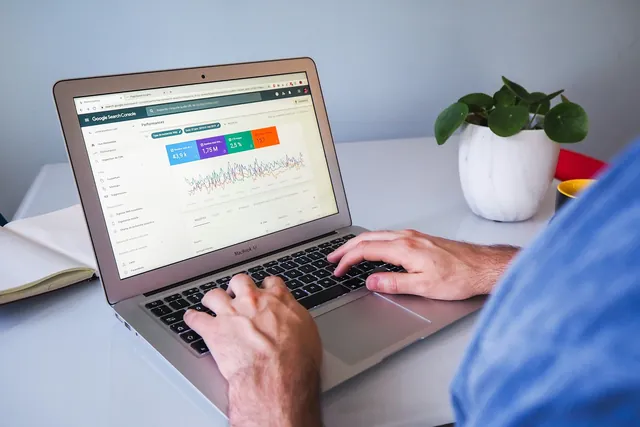
Website redesigns that keep your search visibility
Plan content, page addresses and launch checks before replacing a website people already rely on.

Checkout UX: where stores quietly lose orders
Reduce avoidable friction with clear totals, useful form labels and payment states customers can understand.
3 comments
Sample commentsNext step
Want this applied to your site?
Request a WordPress security review that is scoped, evidenced and validated.
Kofi A.
This was useful. We found two old administrator accounts the same afternoon.
Jasbasoft team Author
Glad it helped. Removing unused accounts is one of the quickest wins.
Esi M.
Do you have a version of the checklist we can print for our team meeting?